Run C in VS Code on Windows, Linux and macOS
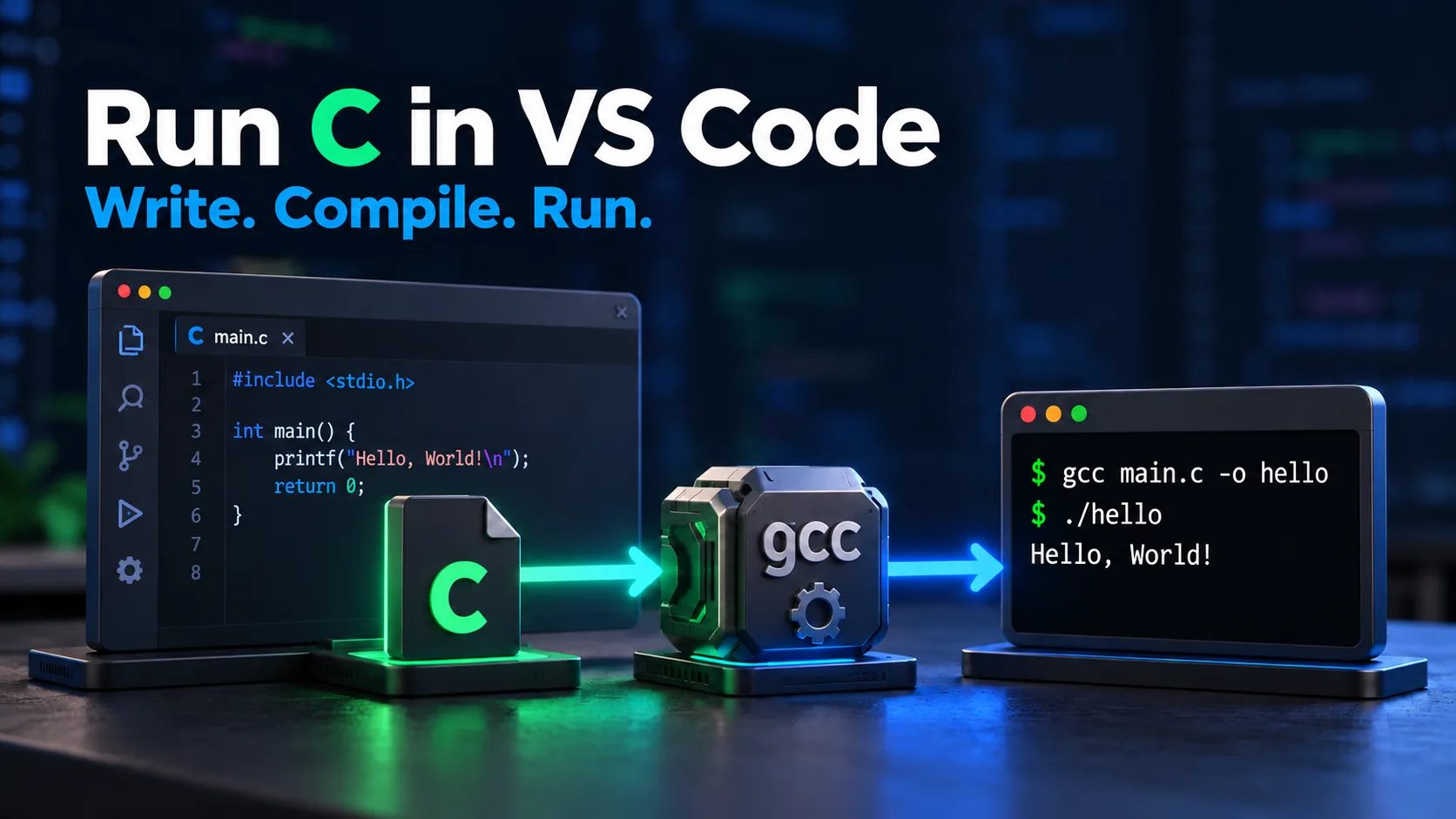
To run C in VS Code, install both the editor and a C compiler, save a .c source file, compile it, and run the resulting executable in a terminal. Microsoft’s C/C++ extension supplies editor and debugging integration; it does not bundle a C compiler. Start with a terminal build before configuring buttons or debugger launch files.
Install the right compiler
Windows: GCC through MSYS2
For a supported x86-64 Windows installation, follow the official VS Code MinGW setup and MSYS2 instructions. In the MSYS2 terminal, the official toolchain installation command is:
pacman -S --needed base-devel mingw-w64-ucrt-x86_64-toolchain
Follow the installer’s update/restart instructions. Add the UCRT64 bin directory (normally C:\msys64\ucrt64\bin for a default install) to your Windows user PATH, then reopen VS Code and its terminal. Check gcc --version in the terminal you will actually use. Do not mix MSYS, UCRT64 and other toolchain directories at random. Windows ARM or a different target needs its matching documented toolchain, not an unqualified copy of the x86-64 command.
Linux: use your distribution packages
On Debian/Ubuntu, install the compiler toolchain with sudo apt update and sudo apt install build-essential; install gdb if you intend to debug with it. Other distributions use different package managers. Confirm gcc --version. Consult the official Linux configuration guide; its sample is C++, so use gcc and a .c file for this lesson rather than g++ and .cpp.
macOS: Apple Command Line Tools
Run xcode-select --install if the tools are missing, complete the system installer, then check clang --version. Follow the official macOS Clang guide for debugger setup. Use clang for this C program; clang++ selects the C++ driver. The installed version depends on your OS/toolchain; this guide does not require a claimed “latest” version.
Save a complete C program
Open a folder in VS Code, install Microsoft’s C/C++ extension, create main.c, paste this code and save. The sample input is a small integer, such as 42. The example reads one line (at most 126 characters before its newline), validates a decimal integer with strtol, and rejects blank, malformed or out-of-range input. Surrounding whitespace is allowed; later input lines are not consumed. The allowed numeric range is the target’s INT_MIN through INT_MAX.
#include <ctype.h>
#include <errno.h>
#include <limits.h>
#include <stdio.h>
#include <stdlib.h>
#include <string.h>
int main(void) {
    char line[128], *end;
    if (fgets(line, sizeof line, stdin) == NULL ||
        (strchr(line, '\n') == NULL && !feof(stdin))) {
        fputs("Enter one integer in the int range on a short line.\n", stderr);
        return 1;
    }
    errno = 0;
    long parsed = strtol(line, &end, 10);
    if (end == line || errno == ERANGE || parsed < INT_MIN || parsed > INT_MAX) {
        fputs("Enter one integer in the int range on a short line.\n", stderr);
        return 1;
    }
    while (isspace((unsigned char)*end)) ++end;
    if (*end != '\0') {
        fputs("Enter one integer in the int range on a short line.\n", stderr);
        return 1;
    }
    int number = (int)parsed;
    printf("You entered: %d\n", number);
    return 0;
}
Run terminal input example online
Sample input
42
Expected output
Reference output for the displayed program, not a live execution result.
You entered: 42
Build, run and type input
Open the integrated terminal in the source folder. On Linux:
gcc -std=c17 -Wall -Wextra -Wpedantic -g main.c -o main
./main
On macOS replace gcc with clang. On Windows PowerShell:
gcc -std=c17 -Wall -Wextra -Wpedantic -g main.c -o main.exe
.\main.exe
After the run command, type 42 and press Enter. You should see You entered: 42. A waiting program is not necessarily frozen: it may be blocked awaiting input. Run in a terminal, not an extension’s noninteractive Output panel. The online run link above supplies stdin separately rather than requiring terminal keystrokes.
Optional build task
Create .vscode/tasks.json inside the opened project folder with this content. It builds only the currently active, saved C file. The process task uses separate arguments so paths with spaces do not require manual shell quoting. Select a .c file before invoking the default build task.
{
  "version": "2.0.0",
  "tasks": [
    {
      "label": "Build active C file",
      "type": "process",
      "command": "gcc",
      "args": [
        "-std=c17",
        "-Wall",
        "-Wextra",
        "-Wpedantic",
        "-g",
        "${file}",
        "-o",
        "${fileDirname}/${fileBasenameNoExtension}"
      ],
      "windows": {
        "args": [
          "-std=c17",
          "-Wall",
          "-Wextra",
          "-Wpedantic",
          "-g",
          "${file}",
          "-o",
          "${fileDirname}/${fileBasenameNoExtension}.exe"
        ]
      },
      "osx": {
        "command": "clang"
      },
      "options": {
        "cwd": "${fileDirname}"
      },
      "problemMatcher": [
        "$gcc"
      ],
      "group": {
        "kind": "build",
        "isDefault": true
      }
    }
  ]
}
Run Terminal → Run Build Task. A successful task builds the executable; it does not run it or provide stdin. Then use the terminal run command above, adjusted to the active filename. If that filename contains spaces, quote the path; in PowerShell use the call operator, for example & ".\my program.exe". For a multi-file project, list all relevant sources or use a build system instead of assuming this one-file task links them.
Debugging and troubleshooting
| Symptom | Check |
|---|---|
| gcc or clang not found | Install the toolchain, check PATH in a fresh terminal, and verify the executable location. |
| Header squiggles but terminal compilation succeeds | Select the actual compiler in C/C++ configuration; editor IntelliSense and build settings are separate. |
| Program seems stuck | Supply stdin in the terminal; inspect loops and input failure handling. |
| Old output after an edit | Save and rebuild; do not run a stale executable after a failed compilation. |
| Undefined reference to another function | Include its source/object in the link step and check declaration/definition spelling. |
| Permission denied on Windows rebuild | Stop the running executable before trying to replace it. |
To debug, install/configure the platform’s supported debugger and use the matching official guide. A build task is not a launch configuration. Add breakpoints, inspect number after the successful conversion, and keep stdin attached to a terminal. Do not copy a Linux debugger path into a Windows launch configuration.
What was verified and what was not
The source example and Linux GCC build arguments are tested in the repository with GCC 13.3.0 on Ubuntu. The task JSON and paths-with-spaces arguments are checked automatically. Windows/macOS installation and desktop VS Code UI/debugger behavior were not executed in that environment; use the linked official platform instructions. No device-specific performance or universal debugger compatibility is claimed.
Need no-install practice? Start with Hello World, program structure, or the online C compiler. Keep compiler errors separate from failures that occur after a successful build.